

Stripe Radar Payment Evaluation
Add Stripe Radar fraud scoring to a Composer checkpoint before your Spreedly transaction step, then allow, review, or deny each payment based on Stripe's risk score. Composer calls Stripe's Payment Evaluation API (/v1/radar/payment_evaluations) for you and returns the score to the checkpoint, so you can route on it before money moves.
This works with any gateway your Purchase or Authorization step uses. Stripe evaluates the payment on its own and does not need to process it.
How this differs from Stripe Radar in the Checkout SDKThe Checkout SDK Stripe Radar integration sends the Radar Session to Stripe as a gateway-specific field on a
purchaseorauthorize. Stripe scores the payment while processing it, so the transaction has already been submitted.The Composer Payment Evaluation step scores the payment before your transaction step runs. You can use the result to block, review, or route the transaction, and the payment can be processed on any gateway.
How it works in Composer
- Your checkout page creates a Stripe Radar Session (
rse_...), using either the Checkout SDK or the Composer Client SDK. - Your server calls the checkpoint with the Spreedly payment method token, amount, currency, customer email, and the Radar Session.
- Get Payment Method Info reads the card's BIN, last 4, and expiration from the Spreedly vault and passes them to the Stripe step.
- Create a Payment Evaluation returns a risk level, a 0–100 fraud score, and a recommended action.
- A Decision step routes on the result: deny, review, or continue to Purchase.
You don't need to create a Stripe PaymentMethod or make a separate Store call. Composer sends Stripe masked card details (BIN, last 4, expiration) instead of a full card number.
Before you begin
You need the following before building the checkpoint:
- Stripe access to the Payment Evaluation API. The API has gated access only and must be enabled on your account. Request access from Stripe using the form on Radar risk signals for any payment processor.
- Stripe approval for masked card details. In the same request, ask Stripe to enable your account to send masked card details (first 6, last 4, and expiration) to the Payment Evaluation API. Composer sends masked card details rather than a Stripe PaymentMethod, so evaluations fail without this approval.
- A Stripe account with Radar. You need its publishable key and secret key. Both keys must come from the same Stripe account. Stripe can't link the Radar Session to the evaluation if they don't match.
- A Composer account with sandbox and production access, and a Server SDK installed on your backend.
- A gateway connected in Connect for your transaction step. Any Spreedly-supported gateway works.
- Card tokenization through Spreedly, using the Checkout SDK, iFrame, or API. Composer reads the card details from the Spreedly vault.
Masked card details return one signalWhen an evaluation uses masked card details, Stripe returns only the
fraudulent_paymentsignal. Composer currently maps only this signal to the step outputs, so your risk level, score, and recommended action are all based on it.
Enabling Stripe Fraud Detection in Composer
Connect your Stripe account to Composer in the Service Catalog.
- From the Service Catalog, click View All Services.
- Find Stripe Fraud Detection and click Configure.
- Enter your Stripe Publishable Key and Stripe Secret Key. Both are required.
- Click Save. The service shows as Active once enabled.
Use test-mode keys (pk_test_..., sk_test_...) in Composer sandbox and live-mode keys in Composer production. Both keys must come from the same Stripe account, and the publishable key used on your checkout page must match the one configured here. See Testing.
BillingStripe bills you directly for each payment evaluation, at the rate in your agreement with Stripe. Spreedly makes the API call on your behalf but doesn't bill for the evaluation.
Also confirm that Spreedly is enabled in the Service Catalog with access to the environment that holds your payment methods. Get Payment Method Info and your transaction step use this connection.
Step 1: Capture a Radar Session
Every evaluation requires a Radar Session (rse_...). Stripe.js creates it in the shopper's browser and uses it to collect device signals. Capture it with one of the options below.
| Option A: Checkout SDK | Option B: Composer Client SDK | |
|---|---|---|
| Best for | You already tokenize cards with the Checkout SDK | You use, or plan to use, the Composer Client SDK |
| How the session reaches Composer | Your server sends it in the checkpoint request | Attached to the source token automatically |
| Request field | stripeFraudDetection.createPaymentEvaluation.inputs.radarSessionId | None. Send sourceToken |
| Platforms | Web, iOS, Android, React Native | Web |
You don't need both SDKs. If you send radarSessionId in the request, Composer uses it ahead of any session attached to the source token.
Option A: Checkout SDK
The Checkout SDK creates a Radar Session with one headless call. It shows no UI and doesn't tokenize anything.
- Load Stripe.js on your checkout page.
- Tokenize the card with Hosted Fields or Express Checkout as usual.
- Call
stripeRadar()with your Stripe publishable key. It returns the Radar Session ID. - Send the payment method token and Radar Session ID to your backend.
<script src="https://js.stripe.com/v3/"></script>// After the card is tokenized
const radarSessionId = await sdk.stripeRadar('pk_live_...'); // Same Stripe account as Composer
await fetch('/api/orders', {
method: 'POST',
headers: { 'Content-Type': 'application/json' },
body: JSON.stringify({
paymentMethodToken, // From the Checkout SDK
radarSessionId, // rse_...
order
})
});Radar is optional in the Checkout SDK. If no session ID comes back, Composer can't run the evaluation, so decide how your checkpoint should handle that case (see Handling evaluation errors).
For full setup on each platform, see the Checkout SDK Stripe Radar guides: Web · iOS · Android · React Native.
You don't need to send the Radar Session to the gatewayThe Checkout SDK guides show passing
radar_session_idas a gateway-specific field onpurchase. That step is only needed for Stripe's in-transaction Radar scoring on a Stripe gateway. For the Composer evaluation, send the session in the checkpoint request instead.
Option B: Composer Client SDK
The Composer Client SDK detects Stripe.js on the page and attaches the Radar Session to the source token. You don't pass the session yourself.
- Load Stripe.js on every page where checkout is rendered.
- Initialize the Composer Client SDK with your public API key. The SDK uses the Stripe publishable key from your Stripe Fraud Detection service configuration.
- Call
getSourceToken()immediately before each checkout request and send it to your backend.
<script src="https://js.stripe.com/v3/"></script>import { Composer } from '@spreedly/composer-sdk-client';
const composer = new Composer('public-api-key...');
composer.track(session.id);
const sourceToken = await composer.getSourceToken();
await fetch('/api/orders', {
method: 'POST',
headers: {
'Content-Type': 'application/json',
'x-dodgeball-source-token': sourceToken
},
body: JSON.stringify({ paymentMethodToken, order })
});Source tokens expire after 1 hour. Don't store them; request a new one for each checkout.
Step 2: Build the checkpoint
A Stripe evaluation checkpoint has four steps: Get Payment Method Info, Create a Payment Evaluation, a Decision, and your transaction step. Start from a transaction processing checkpoint or create a new one in Checkpoint Studio.
Step templates
Open the Step Palette, select the Services tab, and search for "Stripe". The step is under Fraud Detection > Stripe Fraud Detection.
| Step | What it does |
|---|---|
| Get Payment Method Info (Spreedly) | Reads the card's BIN, last 4, and expiration from the Spreedly vault. Required. Composer maps these into the Stripe step automatically. |
| Create a Payment Evaluation (Stripe Fraud Detection) | Sends the payment to Stripe Radar and returns a risk level, fraud score, and recommended action. |
Get Payment Method Info must run before the Stripe stepThe Stripe step needs card details to evaluate the payment. Without Get Payment Method Info earlier in the flow, the evaluation fails. This is a non-billable API call.
Recommended rollout
We recommend a two-phase approach:
- Run Stripe in dark mode first. Stripe scores live traffic without affecting outcomes, so you can see your score distribution before choosing thresholds.
- Enforce Stripe before transaction processing. Once your thresholds are set, move the evaluation ahead of your transaction step and route on the result.
Test your checkpoint in Composer sandbox before either phase. See Testing.
Phase 1: Run Stripe in dark mode
In dark mode, the evaluation runs after the transaction, so it can't change approvals.
- Open your transaction processing checkpoint.
- Add Get Payment Method Info as the first step.
- After your transaction step (for example, Purchase), add an ALLOW step.
- After the ALLOW step, drag Create a Payment Evaluation into the flow.
- Click the Stripe step to open the configuration panel and review the inputs. See Request data reference.
- Save and publish the checkpoint.
Review the scores in the Stripe Dashboard and Composer logs alongside your transaction outcomes to choose thresholds.
Phase 2: Enforce Stripe before transaction processing
- Open your transaction processing checkpoint.
- Add Get Payment Method Info as the first step, if it isn't already there.
- Drag Create a Payment Evaluation directly after Get Payment Method Info, before your transaction step.
- Drag a Decision step directly below the Stripe step and click it to open the Paths panel.
- Configure the paths below, then save and publish.
Example flow:
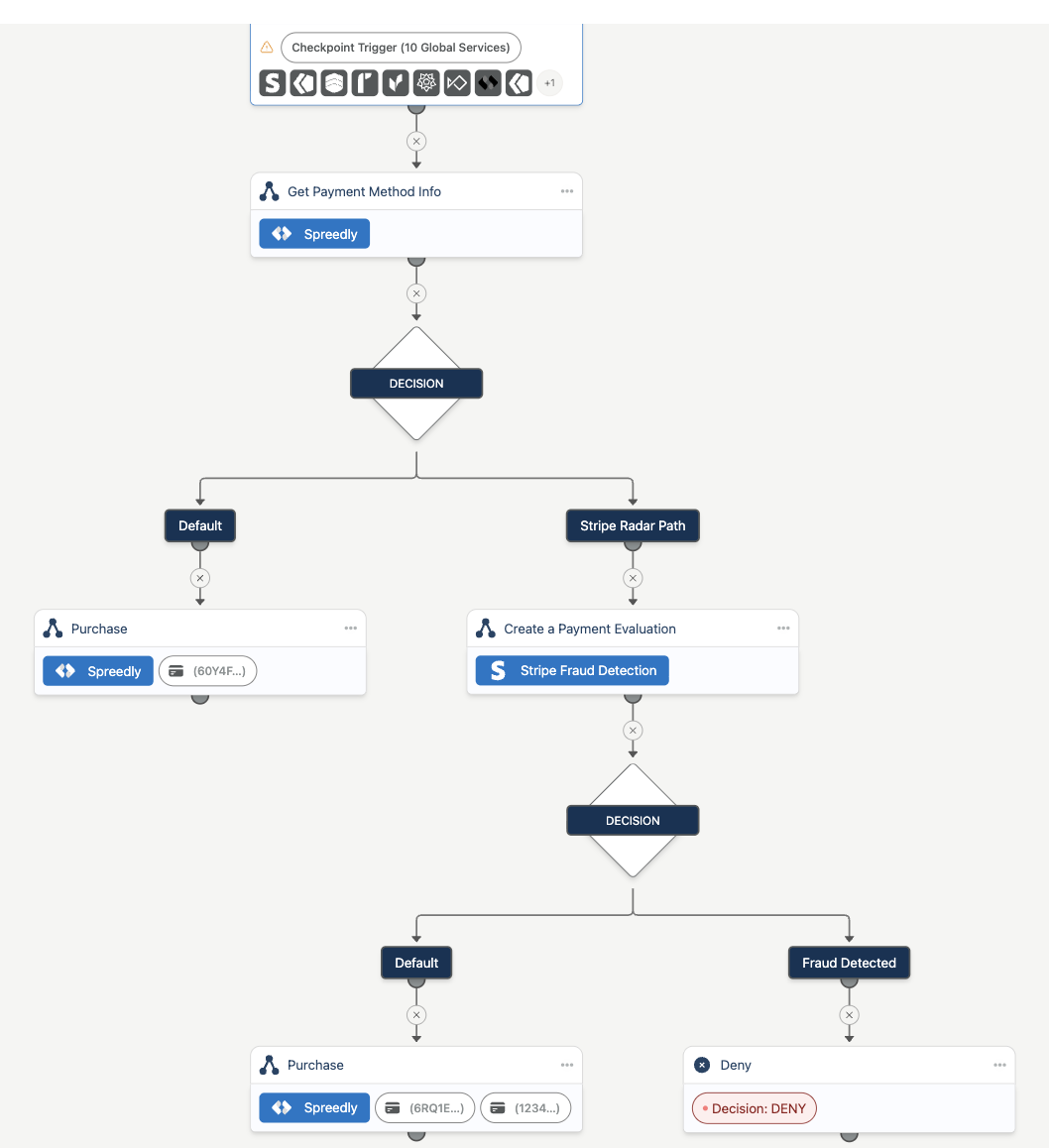
Screening only part of your trafficTo evaluate only some payments, add a Decision step after Get Payment Method Info. Route matching orders to Create a Payment Evaluation and send the rest straight to Purchase on the default path.
Configure paths on the Stripe result
Route on the recommended action, the fraud score, or both. Configure the paths that fit your business:
| Path | Example condition | Example action |
|---|---|---|
| Error | stripeFraudDetection.createPaymentEvaluation.outputs.isFailed = true | Your fallback. See Handling evaluation errors. |
| Deny | stripeFraudDetection.createPaymentEvaluation.outputs.recommendedAction is block or decline | Add a DENY step. |
| Review | stripeFraudDetection.createPaymentEvaluation.outputs.recommendedAction = review, or fraudScore ≥ your review threshold | Alert your team, then continue or deny. |
| Allow (default) | All other results | Continue to Purchase. |
Put the Error path first so a failed evaluation never falls through to the default path by accident.
Skip Radar on the charge when processing on Stripe
If your Purchase or Authorization step uses a Stripe gateway, Stripe applies Radar again when it processes the charge. Since Composer has already evaluated the payment, send the field below on every transaction request so Radar isn't applied twice.
| Gateway | Gateway-specific field | Notes |
|---|---|---|
| Stripe (Charges) | skip_radar_rules: true | Stripe must enable skip rules on your account. See the Stripe gateway guide. |
| Stripe Payment Intents | Not yet confirmed | Contact Spreedly before going live on this gateway. |
Set the field as a default value on the transaction step (Advanced Options > Manage Input Data Sources) so it's sent on every request without changing your server code.
You don't need this field when your transaction step uses a non-Stripe gateway. If some paths still use Stripe as the gateway, Spreedly recommends sending this field in every checkpoint request.
Choosing thresholds
fraudScore ranges from 0 to 100. Higher scores mean higher risk. Stripe's defaults treat scores above 65 as elevated risk and above 75 as high risk, and Stripe's recommendedAction recommends blocking at 75 or above (Stripe docs).
We recommend starting with recommendedAction for deny decisions, since it reflects Stripe's default blocking threshold. Add a fraudScore review threshold below 75 if you want a manual review band, then adjust based on your dark mode data.
Handling evaluation errors
If Stripe returns an error, or required data is missing, the step sets isFailed to true and stripeErrorMessage explains why. Decide whether your checkpoint should:
- Fail open: continue to Purchase without a score, so a Stripe outage doesn't block sales.
- Fail closed: deny or send to review, so no payment proceeds unscored.
If the step isn't set to continue on failure, a validation error ends the checkpoint with an error instead of reaching your Decision step. [CONFIRM: exact name and location of the continue-on-failure setting]
Step 3: Call the checkpoint from your server
Call the checkpoint with the Server SDK and send everything in event.data. The Client SDK doesn't take payment fields.
To confirm the exact fields your checkpoint expects, open the Trigger node, then Expected Data > Copy Schema as JSON.
Minimum request
Every request needs these fields:
| Field | Required by | Notes |
|---|---|---|
paymentMethod.token | Purchase | Spreedly payment method token. The only card value you send. |
spreedly.getPaymentMethodInfo.inputs.paymentMethodToken | Get Payment Method Info | Same token as above |
transaction.amount | Stripe | Positive integer in minor units (1000 = $10.00) |
transaction.currency | Stripe | ISO 4217 code, for example USD |
customer.primaryEmail | Stripe | Stripe requires at least one customer field: email, name, or phone. Email is the simplest. |
stripeFraudDetection.createPaymentEvaluation.inputs.radarSessionId | Stripe | Option A only. With Option B, the source token carries it. |
transaction.gatewayToken | Purchase | Only if the step's Gateway Token is blank |
Also send event.ip whenever the shopper is present.
Don't put the Spreedly token inpaymentMethod.externalIdThe Stripe step reads
paymentMethod.externalIdas a Stripe PaymentMethod ID (pm_...). A Spreedly token in that field causes aNo such payment_methoderror. Leave it empty; Composer uses masked card details from Get Payment Method Info instead.
Option A: Checkout SDK
import { Composer } from '@spreedly/composer-sdk-server';

const composer = new Composer(process.env.SPREEDLY_SECRET_KEY);

app.post('/api/orders', async (req, res) => {
  const { paymentMethodToken, radarSessionId, order } = req.body;

  const checkpointResponse = await composer.checkpoint({
    checkpointName: 'MAKE_PAYMENT',
    event: {
      ip: getIp(req),
      data: {
        paymentMethod: { token: paymentMethodToken },
        transaction: {
          externalId: order.id,
          amount: order.amountInCents, // 9995 = $99.95
          currency: 'USD'
        },
        customer: {
          primaryEmail: order.email
        },
        spreedly: {
          getPaymentMethodInfo: {
            inputs: { paymentMethodToken }
          }
        },
        stripeFraudDetection: {
          createPaymentEvaluation: {
            inputs: { radarSessionId } // rse_... from the Checkout SDK
          }
        }
      }
    },
    sessionId: req.session.id // No source token in this option
  });

  // Handle the response. See "Handle the response" below.
});
Option B: Composer Client SDK
The Radar Session travels with the source token, so leave radarSessionId out.
const checkpointResponse = await composer.checkpoint({
  checkpointName: 'MAKE_PAYMENT',
  event: {
    ip: getIp(req),
    data: {
      paymentMethod: { token: paymentMethodToken },
      transaction: {
        externalId: order.id,
        amount: order.amountInCents,
        currency: 'USD'
      },
      customer: {
        primaryEmail: order.email
      },
      spreedly: {
        getPaymentMethodInfo: {
          inputs: { paymentMethodToken }
        }
      }
    }
  },
  sourceToken: req.headers['x-dodgeball-source-token'], // Carries the Radar Session
  sessionId: req.session.id,
  useVerificationId: req.headers['x-dodgeball-verification-id']
});
Handle the response
Use the Server SDK helpers rather than reading status and outcome directly:
| Helper | Meaning | What to do |
|---|---|---|
isAllowed() | The checkpoint approved and your transaction step ran | Confirm the order |
isDenied() | A DENY step ran, for example on a block recommendation | Reject the order |
isRunning() | A step needs the shopper, such as a 3DS challenge | Return verification to the frontend for handleVerification() |
isUndecided() / hasError() | The checkpoint finished without a decision or errored | Allow, retry, or reject |
See Interpreting the Checkpoint Response for details.
Request data reference
Stripe scores more accurately with more data, so send every field you have. Fields marked Required are rejected if missing. You can also view field descriptions in Checkpoint Studio.
Card data (supplied by Get Payment Method Info)
You don't send any card data. Send only the Spreedly payment method token. As long as Get Payment Method Info runs before the Stripe step, Composer reads the card details from the Spreedly vault and passes them to Stripe:
| Sent to Stripe | Source |
|---|---|
| First 6 digits (BIN) | Get Payment Method Info |
| Last 4 digits | Get Payment Method Info |
| Expiration month and year | Get Payment Method Info |
No Stripe PaymentMethod (pm_...) and no Store call are needed.
Radar Session
| Path | Type | Description | Required |
|---|---|---|---|
stripeFraudDetection.createPaymentEvaluation.inputs.radarSessionId | string | Radar Session ID (rse_...). Option A sends it here. With Option B, Composer reads it from the source token. If both are present, this field wins. | Yes, from one source |
Transaction
| Path | Type | Description | Required |
|---|---|---|---|
transaction.amount | integer | Amount in minor units. Must be a positive integer. 9995 = $99.95 USD; 1500 = ¥1,500 JPY. | Yes |
transaction.currency | string | Three-letter ISO 4217 code, any case. Must be a Stripe-supported currency. | Yes |
transaction.externalId | string | Your order or transaction ID | No |
Customer
Send at least one of these fields. Stripe rejects the evaluation otherwise.
| Path | Type | Description | Stripe field |
|---|---|---|---|
customer.primaryEmail | string | Customer email. Truncated to 800 characters. | customer_details.email |
customer.name | string | Full name or business name | customer_details.name |
customer.primaryPhone | string | Phone, for example +15551234567 | customer_details.phone |
customer.externalId | string | Stripe Customer ID (cus_...) only. Don't send your own customer ID here. | customer_details.customer |
For Stripe Connect, set the account ID with stripeFraudDetection.createPaymentEvaluation.inputs.stripeCustomerAccountId.
Billing address (optional)
Maps to payment_details.payment_method_details.billing_details. Stripe compares billing and shipping addresses as a fraud signal.
| Path | Description |
|---|---|
transaction.billingAddress.firstName / lastName | Joined into the billing name, unless stripeFraudDetection.createPaymentEvaluation.inputs.billingDetailsName is set |
transaction.billingAddress.email | Billing email |
transaction.billingAddress.phone | Billing phone |
transaction.billingAddress.line1 / line2 | Street address |
transaction.billingAddress.city | City |
transaction.billingAddress.state | ISO 3166-2 state or region code, for example NY |
transaction.billingAddress.postalCode | Postal code |
transaction.billingAddress.country | ISO 3166-1 alpha-2 code, for example US |
Shipping address (optional)
Maps to payment_details.shipping_details.
| Path | Description |
|---|---|
shipment.addressLine1 / addressLine2 | Street address |
shipment.city | City |
shipment.state | ISO 3166-2 state or region code |
shipment.postalCode | Postal code |
shipment.country | ISO 3166-1 alpha-2 code |
stripeFraudDetection.createPaymentEvaluation.inputs.shippingRecipientName | Recipient name |
stripeFraudDetection.createPaymentEvaluation.inputs.shippingRecipientPhone | Recipient phone |
Money movement (optional)
Tells Stripe whether the shopper is present and what kind of payment this is.
| Path | Allowed values |
|---|---|
stripeFraudDetection.createPaymentEvaluation.inputs.moneyMovementType | card (default when the fields below are set) |
stripeFraudDetection.createPaymentEvaluation.inputs.moneyMovementCardCustomerPresence | on_session (shopper at checkout), off_session (saved card, renewal) |
stripeFraudDetection.createPaymentEvaluation.inputs.moneyMovementCardPaymentType | one_off, recurring, setup_one_off, setup_recurring |
Evaluation metadata (optional)
stripeFraudDetection.createPaymentEvaluation.inputs.evaluationMetadata takes key-value pairs that appear on the evaluation in the Stripe Dashboard. Keys can be up to 40 characters; longer keys are rejected. Values are converted to strings and truncated at 500 characters.
You can send any input under stripeFraudDetection.createPaymentEvaluation.inputs in the request, or set it as a step default in Checkpoint Studio under Advanced Options > Manage Input Data Sources. A request value overrides the default.
Full example
This event.data example uses synthetic data and includes every supported field group.
{
  "paymentMethod": {
    "token": "SYNTHETIC_PM_TOKEN_123"
  },
  "spreedly": {
    "getPaymentMethodInfo": {
      "inputs": { "paymentMethodToken": "SYNTHETIC_PM_TOKEN_123" }
    }
  },
  "customer": {
    "primaryEmail": "[email protected]",
    "name": "Jane Doe",
    "primaryPhone": "+15551234567"
  },
  "transaction": {
    "externalId": "order-12345",
    "amount": 14999,
    "currency": "USD",
    "billingAddress": {
      "firstName": "Jane",
      "lastName": "Doe",
      "email": "[email protected]",
      "phone": "+15551234567",
      "line1": "456 Oak Ave",
      "line2": "Suite 200",
      "city": "New York",
      "state": "NY",
      "postalCode": "10001",
      "country": "US"
    }
  },
  "shipment": {
    "addressLine1": "123 Main St",
    "city": "San Francisco",
    "state": "CA",
    "postalCode": "94102",
    "country": "US"
  },
  "stripeFraudDetection": {
    "createPaymentEvaluation": {
      "inputs": {
        "radarSessionId": "rse_SYNTHETIC123",
        "shippingRecipientName": "Jane Doe",
        "moneyMovementCardCustomerPresence": "on_session",
        "moneyMovementCardPaymentType": "one_off",
        "evaluationMetadata": {
          "storeId": "store-042",
          "orderSource": "web"
        }
      }
    }
  }
}
Outputs
Every successful evaluation returns three fraud values to build your decisioning on: recommendedAction, fraudRiskLevel, and fraudScore. All three come from Stripe's fraudulent_payment signal, which predicts whether a payment will lead to a fraud dispute or an early fraud warning. The step also returns status fields for handling errors. Reference any of them in Decision steps and later steps using the paths below.
| Output path | Type | Description | Example |
|---|---|---|---|
stripeFraudDetection.createPaymentEvaluation.outputs.isFailed | boolean | true if Stripe returned an error | false |
stripeFraudDetection.createPaymentEvaluation.outputs.evaluationId | string | Stripe payment evaluation ID. Present on success. | peval_1Nv... |
stripeFraudDetection.createPaymentEvaluation.outputs.status | string | Evaluation status from Stripe | complete |
stripeFraudDetection.createPaymentEvaluation.outputs.recommendedAction | string | Stripe's recommendation | approve, review, decline, block |
stripeFraudDetection.createPaymentEvaluation.outputs.fraudRiskLevel | string | Risk level from the fraudulent_payment signal | low, medium, high, very_high |
stripeFraudDetection.createPaymentEvaluation.outputs.fraudScore | number | Score from 0 to 100 from the fraudulent_payment signal | 12 |
stripeFraudDetection.createPaymentEvaluation.outputs.stripeErrorMessage | string | Stripe's error message. Only set when isFailed is true. | radar_session is not valid |
fraudRiskLevel and fraudScore are only present when the evaluation succeeds, so route on isFailed first.
Example outputs
A successful evaluation (synthetic values):
{
  "isFailed": false,
  "evaluationId": "peval_SYNTHETIC123",
  "status": "complete",
  "recommendedAction": "approve",
  "fraudRiskLevel": "low",
  "fraudScore": 12
}
A failed evaluation:
{
  "isFailed": true,
  "stripeErrorMessage": "radar_session is not valid"
}
Which output to decide on
| Output | Use it to | Example rule |
|---|---|---|
recommendedAction | Follow Stripe's default thresholds with no tuning | Deny on block or decline; review on review |
fraudScore | Set your own thresholds on the 0–100 scale | Review at ≥ 65; deny at ≥ 75 |
fraudRiskLevel | Route on a coarse band instead of a number | Review on high; deny on very_high |
isFailed | Handle evaluations that didn't complete | Fail open to Purchase, or fail closed to review |
The example score thresholds follow Stripe's defaults: above 65 is elevated risk and above 75 is high risk (Stripe docs).
Recommended action values
| Value | Meaning |
|---|---|
approve | Stripe recommends approving the payment |
review | Stripe recommends manual review first |
decline | Stripe recommends declining the payment |
block | Stripe blocked the payment under a Radar rule |
Processing on Stripe?Send
skip_radar_ruleson every transaction so Radar isn't applied a second time. See Skip Radar on the charge when processing on Stripe.
Testing
Test end to end in Composer sandbox with Stripe test-mode keys before sending production traffic.
- Use test keys everywhere. Enter your Stripe test-mode publishable and secret keys in Composer sandbox, and use the matching test-mode publishable key on your checkout page. Point your Server SDK at sandbox (
https://api.sandbox.dodgeballhq.com) with your sandbox API keys. - Use a Spreedly test environment and test gateway. Tokenize Spreedly test cards in a test environment and set the transaction step's Gateway Token to a test gateway.
- Force risk levels. Stripe provides Radar test cards that return specific risk levels. [CONFIRM: that Radar test cards return the expected risk level when evaluated with masked card details]
- Add a test-case branch for repeatable scenarios. Add a Decision step right after the trigger that checks a metadata value such as
transaction.metadata.testCase. Route each value to a fixed outcome, for exampleallowto Allow anddenyto Deny. Requests without atestCasevalue follow the normal Stripe path. - Also test the real Stripe path. Send orders without a
testCasevalue to confirm the outputs and thresholds behave as expected, including the Error path (for example, by omitting the Radar Session). - Check the results in the Composer sandbox logs and the Stripe Dashboard in test mode.
- Move the checkpoint to production. Export the tested checkpoint from sandbox, import it into production, confirm the live Stripe publishable and secret keys are configured, then publish.
Remove any test-case branch before you export the checkpoint to production. Otherwise, a production request with the test value could skip Stripe screening.
Troubleshooting
| Error or symptom | Cause | Fix |
|---|---|---|
client_device_metadata_details.radar_session is required | No Radar Session reached Composer | Option A: confirm Stripe.js loads and stripeRadar() returns an ID, then send it as radarSessionId. Option B: load Stripe.js before initializing the Client SDK and send a fresh sourceToken. |
radar_session is not valid | Session expired, malformed, or created with a publishable key from a different Stripe account | Create a new session per checkout and use keys from the same Stripe account. |
customer_details must include at least one of... | No customer field was sent | Send customer.primaryEmail (or name or phone). |
payment_details.amount must be a positive integer | Amount was zero, negative, or in major units (99.95) | Send minor units as an integer (9995). |
payment_details.currency is not supported... | Currency isn't on Stripe's supported list | Use a Stripe-supported currency. |
No such payment_method | A value in paymentMethod.externalId isn't a Stripe PaymentMethod | Remove paymentMethod.externalId from the request. |
Card details missing or payment_method required | Get Payment Method Info didn't run before the Stripe step, or its token input is empty | Add Get Payment Method Info first and send spreedly.getPaymentMethodInfo.inputs.paymentMethodToken. |
| Stripe access or permission error | Payment Evaluation API or masked card details not enabled on your Stripe account | Request access from Stripe for both. |
metadata key exceeds Stripe limit of 40 characters | An evaluationMetadata key is too long | Shorten keys to 40 characters or fewer. |
customer_presence must be on_session or off_session | Invalid money movement value | Use only the allowed values in Money movement. |
When isFailed is true, stripeErrorMessage holds Stripe's message. Check it in the Composer logs first.
Updated about 2 hours ago