

Building a transaction processing checkpoint
A transaction processing checkpoint is a checkpoint whose steps run an actual payment – authorize, capture, purchase, verify, or credit – alongside whatever fraud, identity, or 3DS logic you want in the same flow. This guide walks through building one end to end.
Before you start you need:
- A gateway connected under Connect (Composer works with any of the 150+ supported gateways).
- A payment method already tokenized in the Vault, or a plan to collect one via Checkout SDK/iFrame/API as part of your flow.
Create the checkpoint
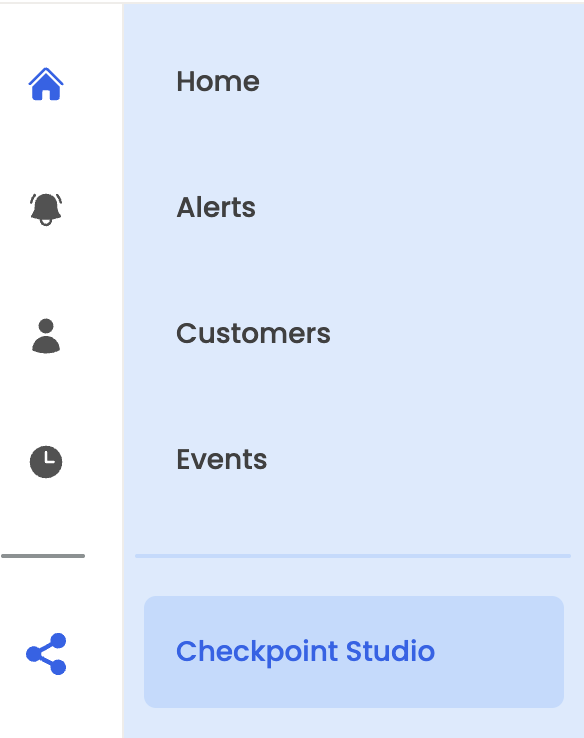
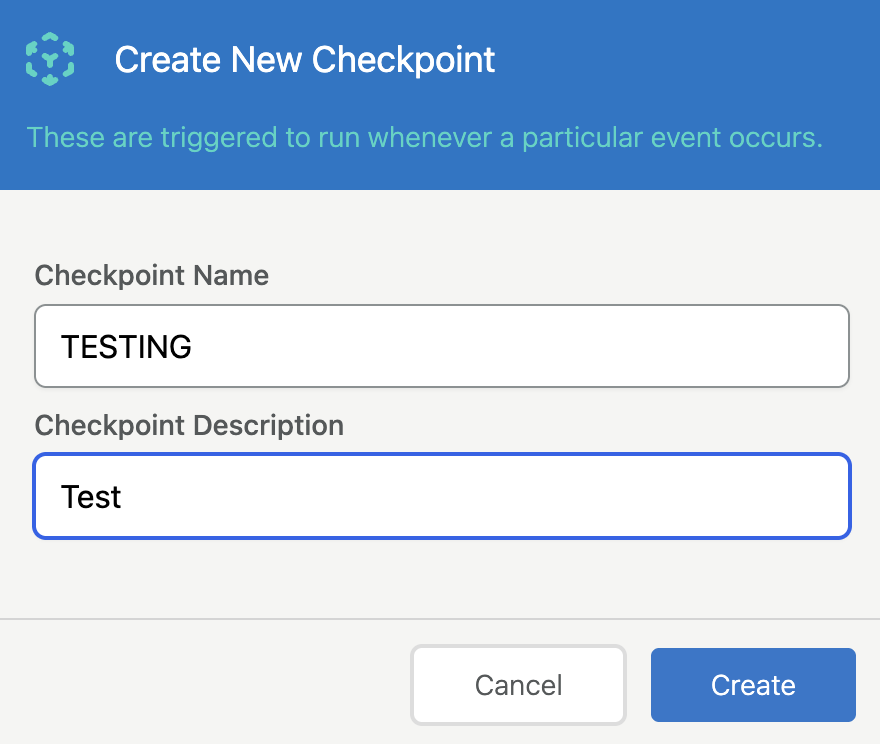
Go to Checkpoint Studio and click Create New Checkpoint. Name it for the action it protects (MAKE_PAYMENT, CHECKOUT) – you can't rename it later, since your code calls it by name.
Add your first step
There's no required step order – build whatever the transaction needs.
Do you need Get Payment Method Info?
Most checkpoints don't. Transaction steps only need the payment method token, which you send in the request as paymentMethod.token.
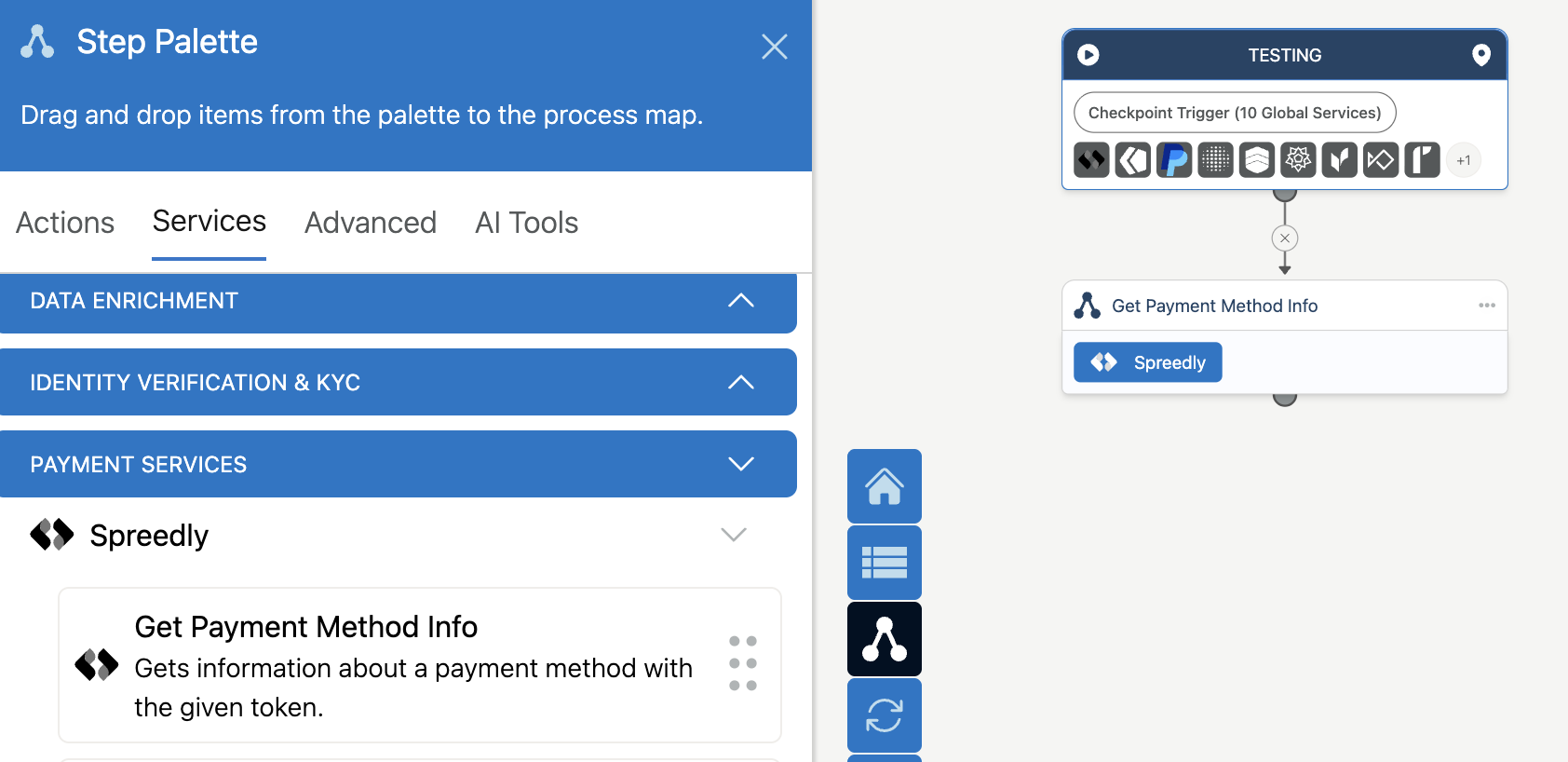
Add Get Payment Method Info as your first step when your checkpoint needs details about the card itself:
- Routing on card attributes. If a Decision step routes on the card's brand, BIN, or BIN metadata (card type, issuing country, issuing bank, and more), Get Payment Method Info must run before that Decision step. See Routing on BIN metadata & normalized fields.
- Supplying card data to other steps. Some steps, such as fraud screening, accept card details like BIN, brand, and issuing country. Get Payment Method Info adds these to the canvas so you don't have to send them in the request.
If neither applies, skip this step and start with your transaction step.
When you add Get Payment Method Info, it expects the payment method token in its own input,
spreedly.getPaymentMethodInfo.inputs.paymentMethodToken, in addition topaymentMethod.token. Use Copy Schema as JSON on the Trigger node to confirm the fields your checkpoint expects.
Add a transaction step
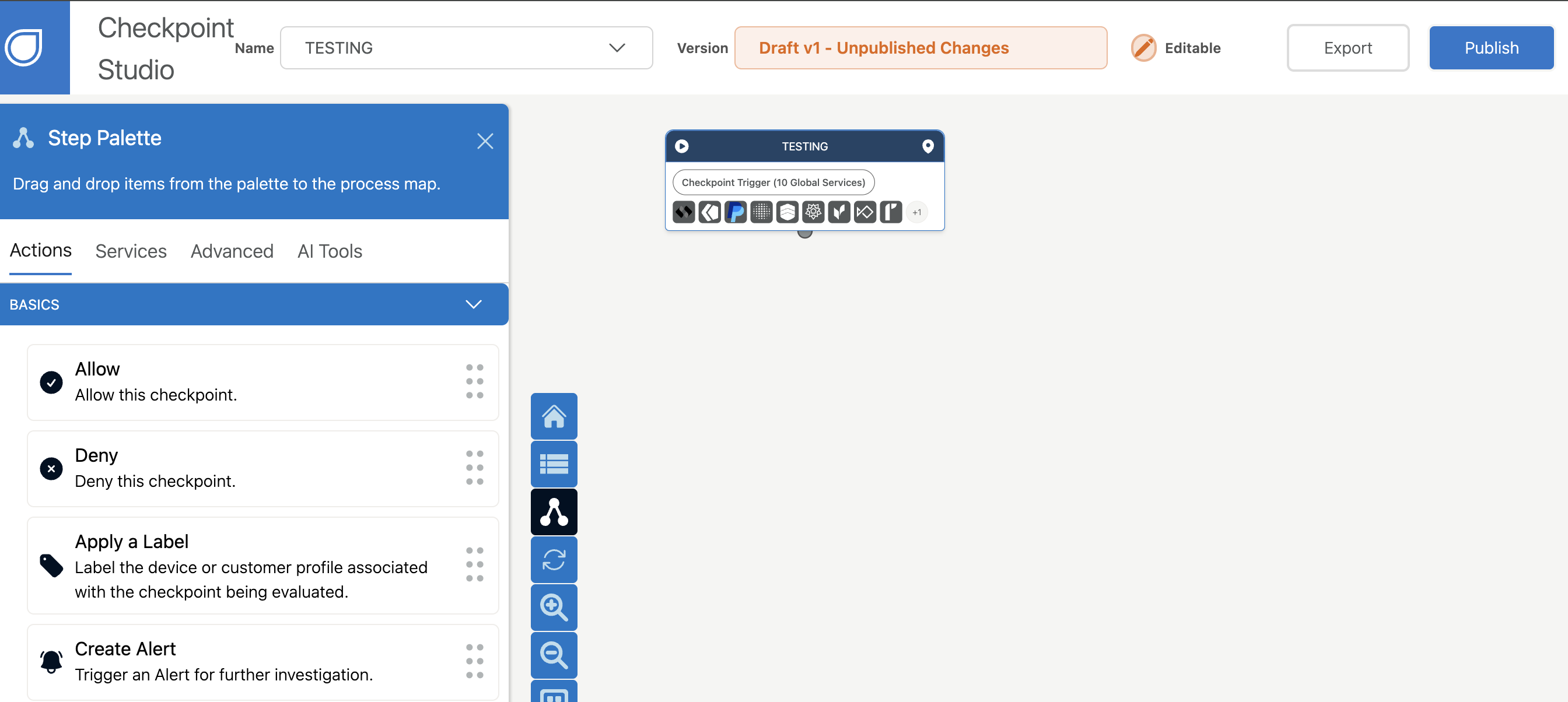
Drag in Authorization, Purchase, Verify, or General Credit from the Step Palette. Each of these has a Gateway Token field – set it, and any transaction.gatewayToken sent in the request payload is ignored. Leave it blank, and the payload's value is used instead. This is also how you control test vs. live: point the Gateway Token at a sandbox connection or a live one; there's no separate "test workflow" mode.
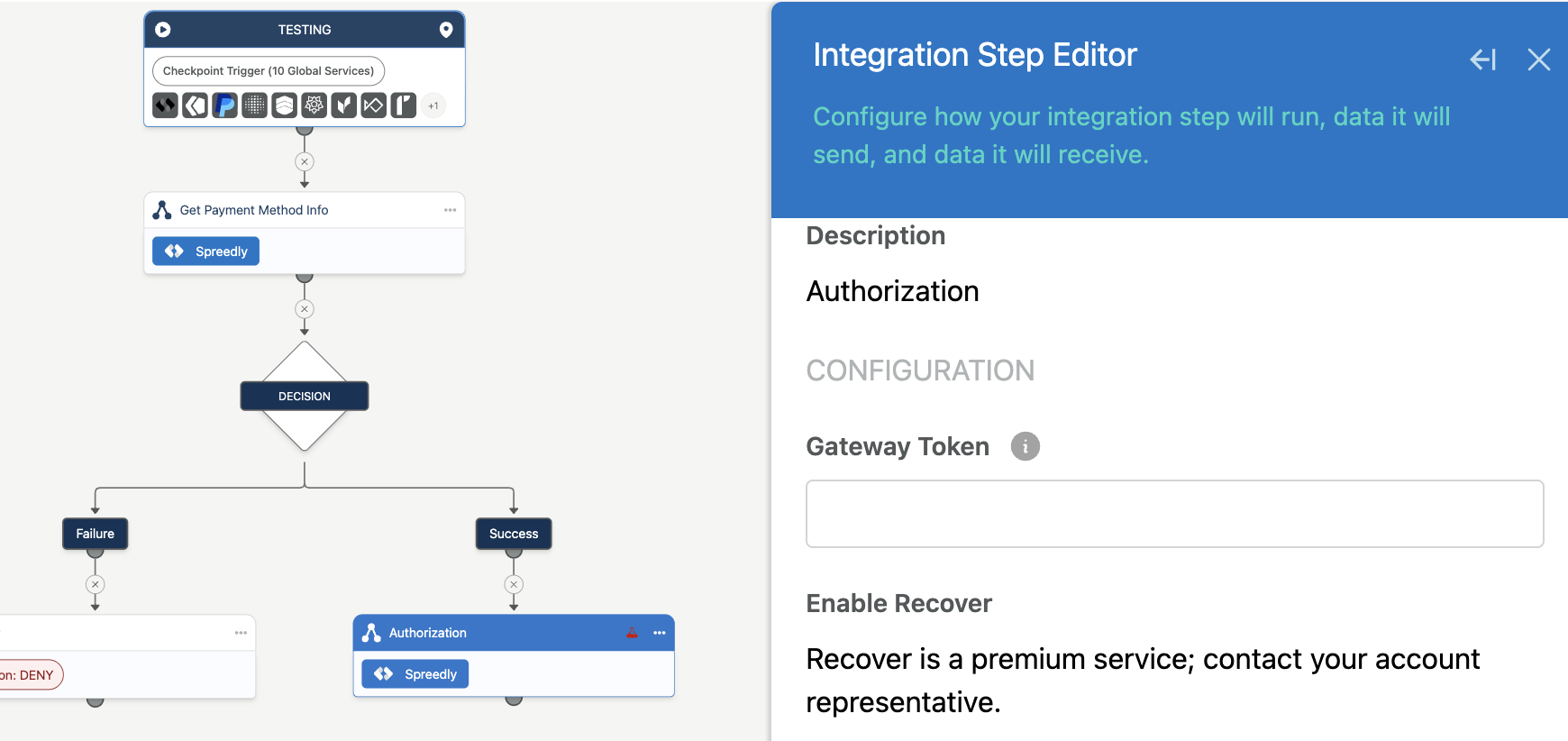
Processing for multiple sub-merchantsLeave a step's Gateway Token blank and pass
transaction.gatewayTokenin each request to process transactions for multiple sub-merchants from one checkpoint. If you're a platform or merchant aggregator, see Composer for platforms and merchant aggregators for environment, failover, and 3DS considerations.
Add automatic failover with Recover (optional)
Recover is an optional paid service and must be enabled by Spreedly for production use — contact your account manager or [email protected]. Billing occurs at the organization level; see Your account for details.
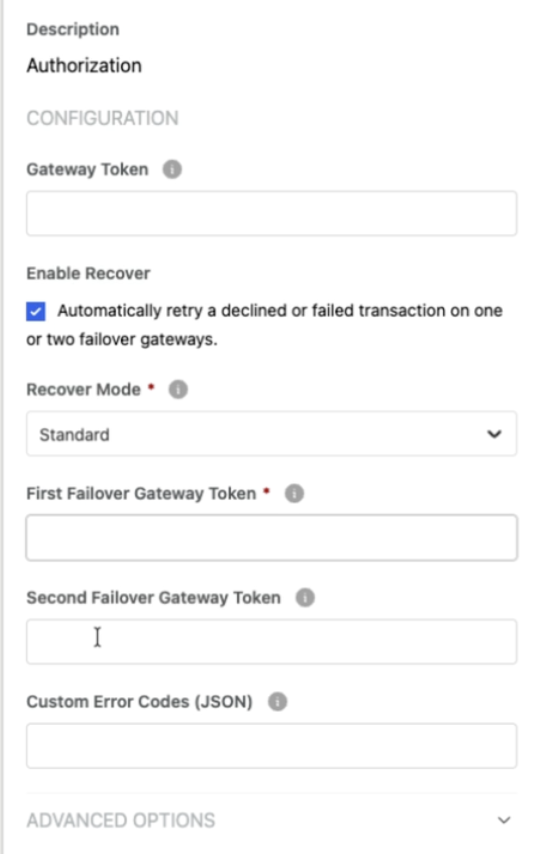
On the same Integration Step Editor panel where you set the Gateway Token, check Enable Recover to automatically retry a declined or failed transaction on one or two failover gateways for an Authorization or Purchase step. This replaces having to hand-craft a retry block in your API request — it's configured visually on the step itself.
Once enabled, four more fields appear:
- Recover Mode (required) — Standard retries both soft declines and outages; Outage Only retries only on confirmed or suspected gateway outages.
- First Failover Gateway Token (required) — the gateway to retry on if the primary gateway fails.
- Second Failover Gateway Token (optional) — a further gateway to retry on if the first failover also fails.
- Custom Error Codes (JSON) (optional, advanced) — a JSON object keyed by gateway type, overriding which error codes trigger a retry. Matches Spreedly's custom_errors format, e.g. {"adyen": {"messages": ["FRAUD-CANCELLED"]}}.
Gateway supportStandard mode, including any Custom Error Codes, is only available when the step’s primary gateway is one of Spreedly’s Recover-supported gateways, since it relies on Spreedly’s decline-code mapping for that gateway. Outage Only mode works with any primary gateway, and the failover gateways can be any Spreedly-supported gateway. See the Recover documentation for the current list of supported gateways and how each gateway’s error codes are classified.
Other notes:
- Only soft declines and outages are retried — a hard decline (fraud suspicion, invalid card number, lost/stolen card, insufficient funds) is never retried, since it's unlikely to succeed on a different gateway either.
- A successful transaction or a hard decline on the primary gateway never triggers a retry attempt at all.
- If the first failover gateway also fails, that failure is retried on the second failover gateway (if configured), regardless of mode or error type.
- Failover gateway tokens are step settings and can't be passed per request. If one step processes transactions for multiple sub-merchants, all of them share the same failover gateways. See Processing for multiple sub-merchants.
Gather the parameters your SDK needs to send
Rather than checking each step individually, open the Trigger node → Expected Data → Copy Schema as JSON. This exports every input your connected steps (and any decision conditions) require, in the same shape your server SDK sends as event.data.
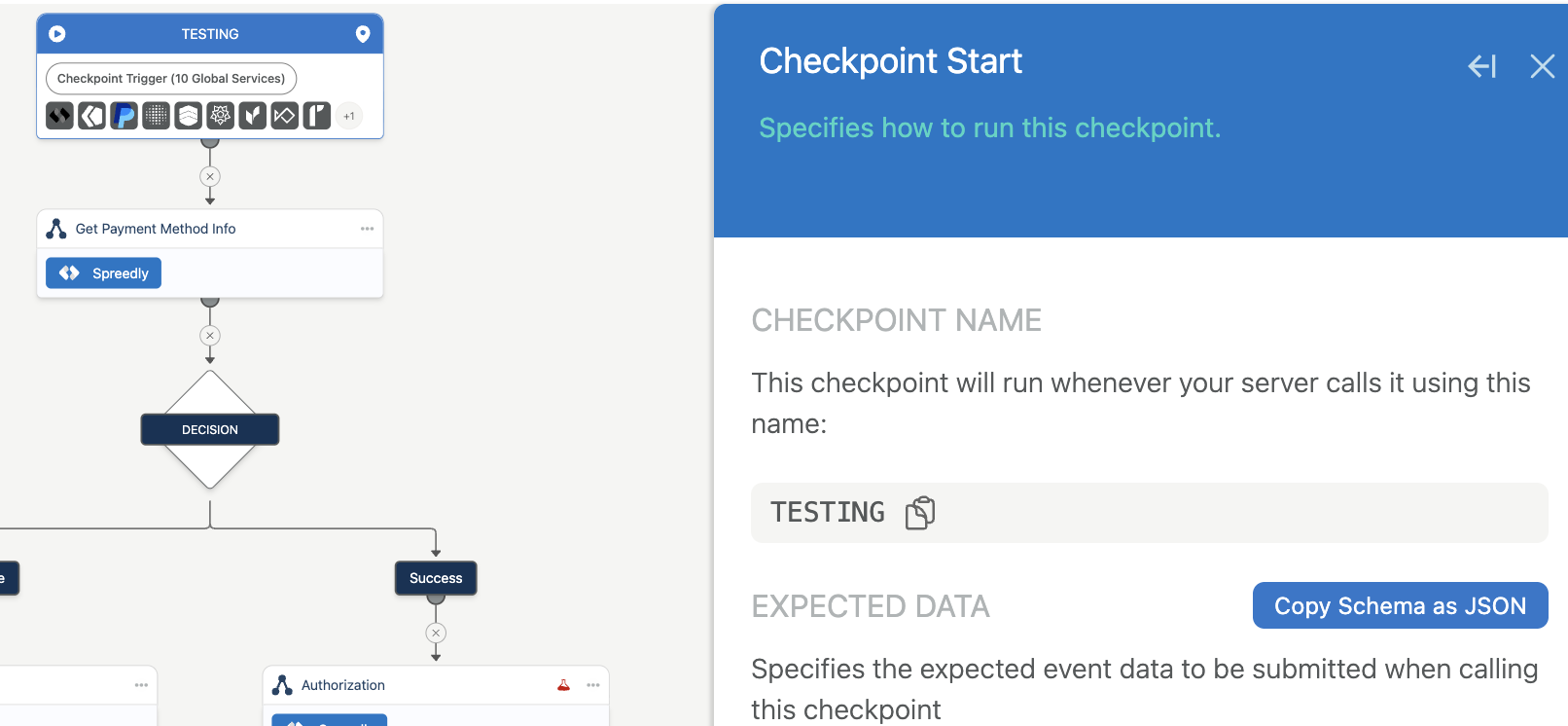
A couple of things worth knowing about that schema:
- If you leave a step's Gateway Token blank, send
transaction.gatewayTokenin every request. isRequired: truemeans at least one connected step needs the field and nothing upstream supplies it – across every branch. A field can show required even if the path an individual transaction takes never uses it.- Expected Data doesn't cover step settings like Gateway Token, and it reflects any manual remapping you've done.
We'd recommend always setting transaction.currency explicitly rather than relying on a default, even where the schema marks it optional.
Setting the environment per transaction
By default, every checkpoint in your org runs against a single globally configured environment/access secret. For this release, you can override that per transaction: configure your Spreedly service connection with an org-level access secret, then pass an environmentKey in the checkpoint request. Any environment in that org can be targeted this way without building a separate checkpoint per environment.
Set allow/deny logic
Every path allows by default – you don't need to end a branch with an explicit Allow. Place Deny only where you actually want to block the transaction.
Publish
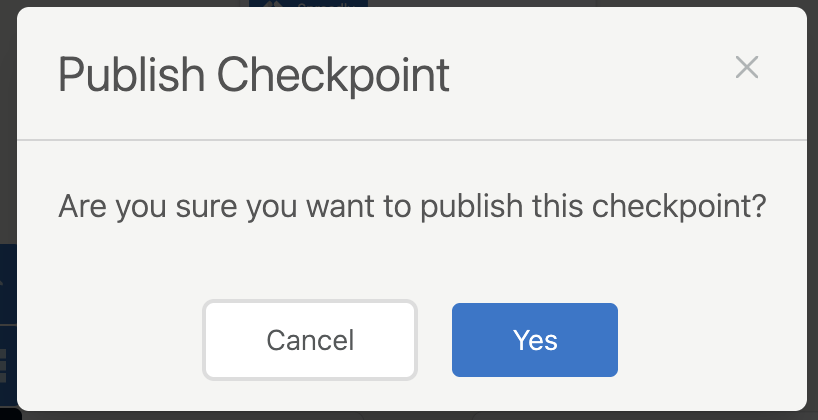
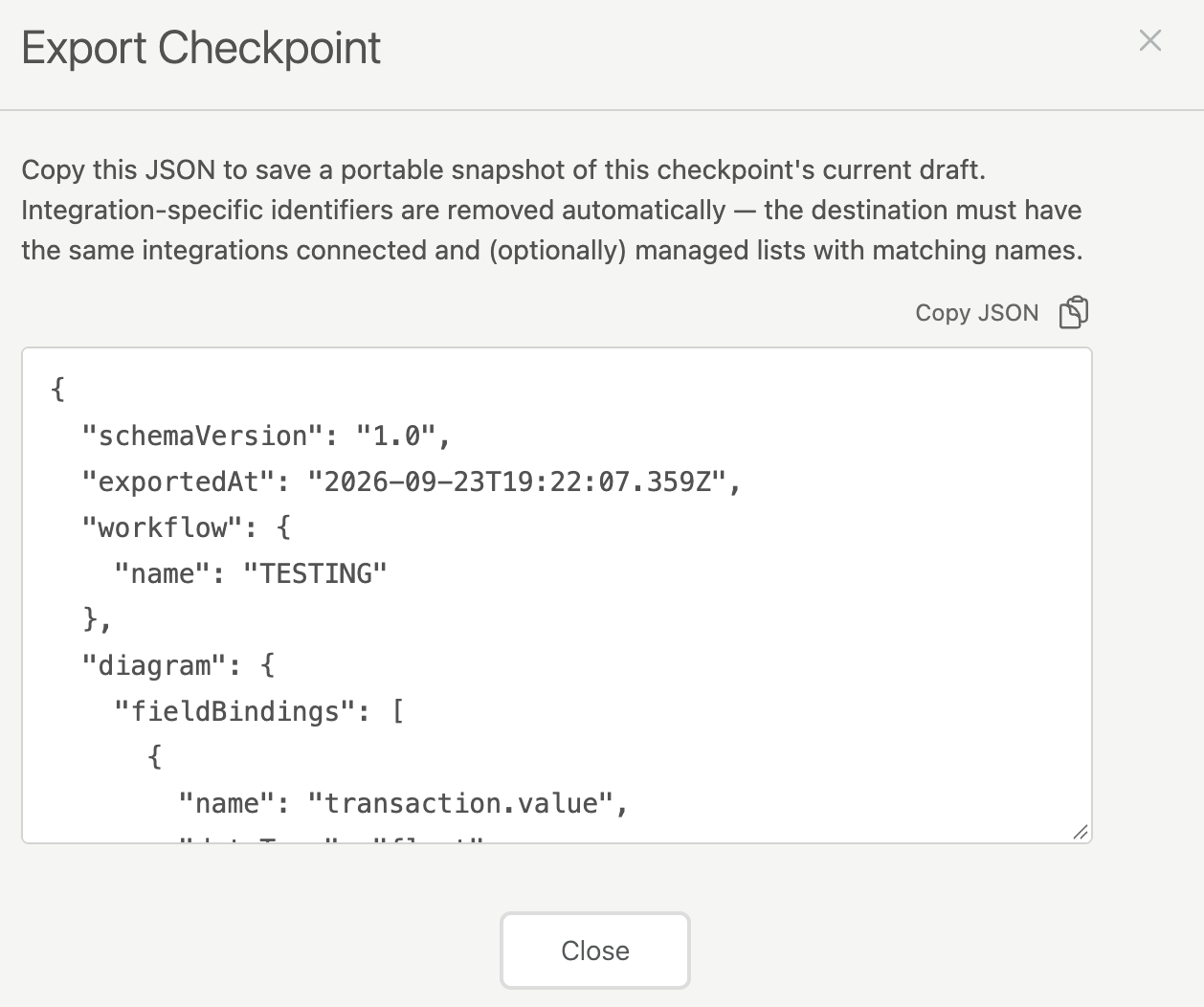
Publishing is required before a checkpoint responds to real requests. Once published, the version dropdown becomes view-only for that version – you can't republish an old version directly. To roll one back: open the old version → Export → Import Checkpoint (this creates a new, unpublished checkpoint, renaming it if the name's taken) → review → publish.
Calling the checkpoint
Transaction parameters go in the Server SDK only, as event.data – the Client SDK doesn't take payment fields. You still initialize the Client SDK for getSourceToken() (the device token) and handleVerification() if a step needs the shopper present (a 3DS challenge, for example); Composer drives that challenge itself.
    data: {
      paymentMethod: { token: paymentMethodToken },
      transaction: { amount: 1000, currency: 'USD' }
      // If your checkpoint uses Get Payment Method Info, also send:
      // spreedly: {
      //   getPaymentMethodInfo: {
      //     inputs: { paymentMethodToken: paymentMethodToken }
      //   }
      // }
    }
Handle the response by its verification state:
| State | Meaning | What to do |
|---|---|---|
| COMPLETE / APPROVED or DENIED | The checkpoint reached a decision | Proceed or reject |
| BLOCKED / PENDING | A step needs the shopper's browser (e.g. a 3DS challenge) | Return response.verification to your frontend; the Client SDK's handleVerification() runs it, then call the checkpoint again with useVerificationId set to the returned ID |
| FAILED / ERROR | The checkpoint itself errored | Decide whether to allow, retry, or reject |
Currently not supported
- Network Token / PAN Retry configuration: Coming soon!
- Payment Method Distribution (PMD) from inside a checkpoint isn't supported in this release.
- Composer doesn't currently support polling a gateway's "processing" response through to a final outcome.
Updated 30 minutes ago