

Recent Transactions
The recent transactions report can be found by navigating to the Connect page on the left side menu and then selected Recent Transactions.
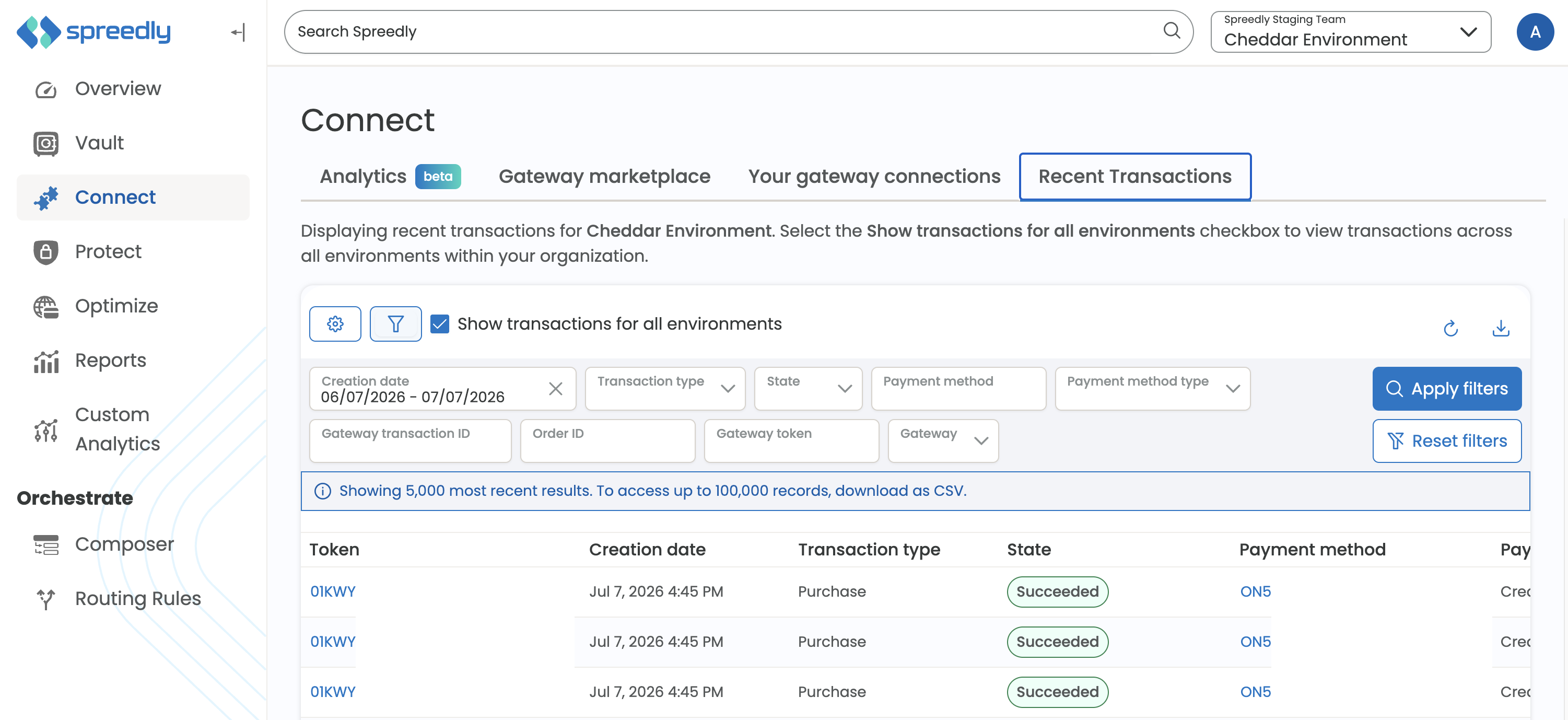
Filtering
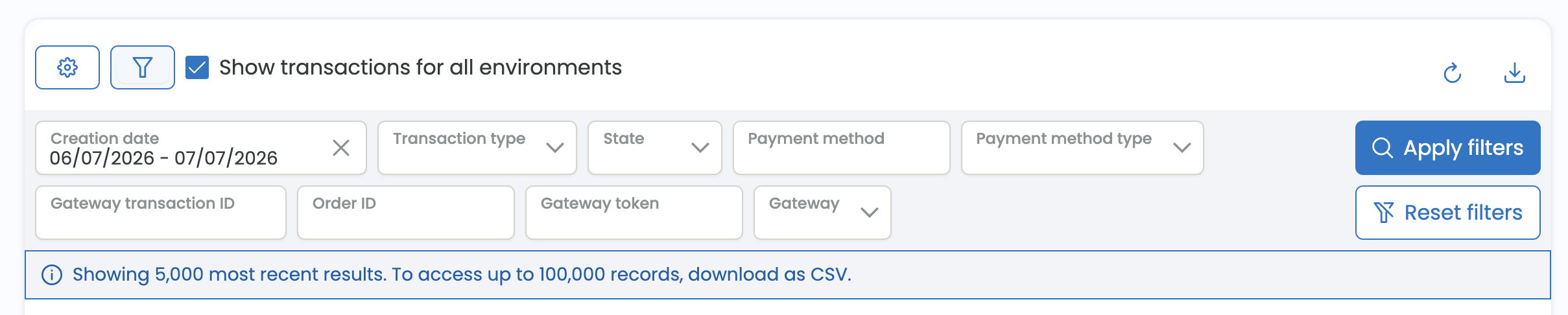
This table by default will filter all recent transactions for the last 30 days. You can remove this filter but you must select at least one other filter for data to properly load. The filter menu can be collapsed, this setting will be preserved on subsequent page views of the application. All filter selected values (except Creation date) will also be cached to allow for a better user experience when viewing details and then going back to the main table. To easily clear your filters just select the reset filter button located next to the download icon on the top right.
Column Selection and Resizing
All columns in this table are resizable and movable, you can drag the column header to where you want it to be in the table. You can also select which columns to display in the table. These changes will persist on subsequent page load.

To configure which columns are displayed, choose the cog toggle for Column configuration which will open a dropdown of selected columns. You can reset the columns to the default by selecting the reset button next to the dropdown.
Downloads
This report will only show the more recent 5,000 transactions matching the filters you have selected, to view more transactions we recommend you download the report. The download supports the latest 100,000 transactions matching your filters.
Organization vs. Environment Transactions
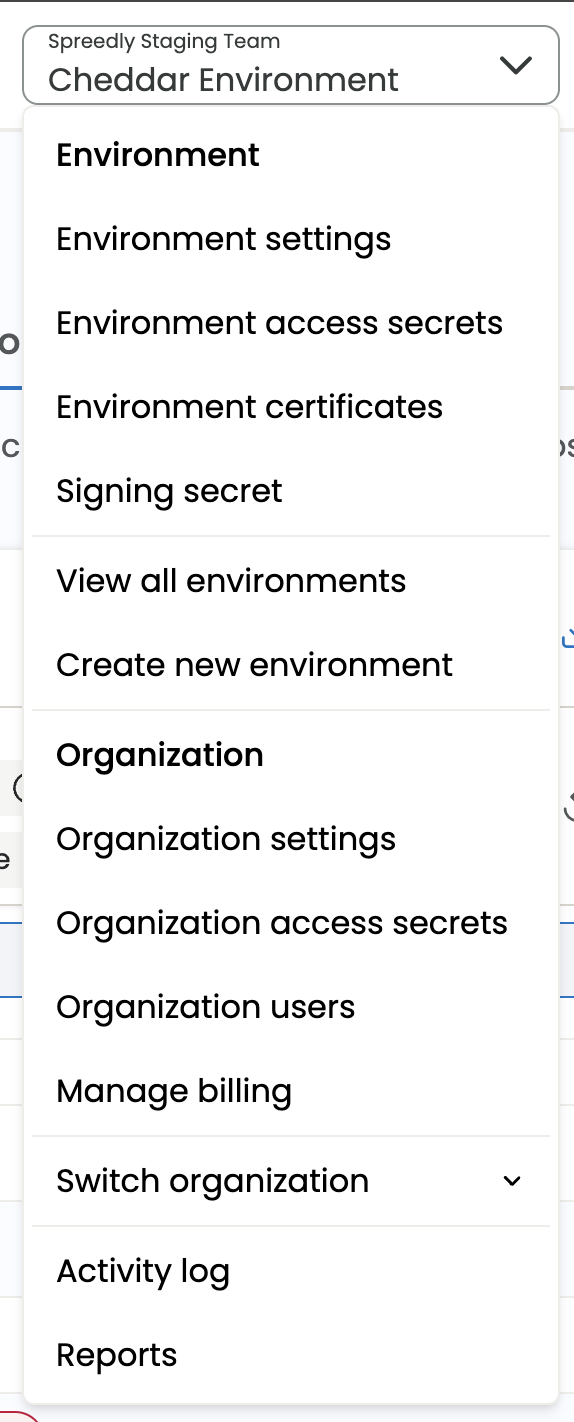
If you select the checkbox for Show transactions for all environments the table will load all transactions for the Organization you are in. If you uncheck the checkbox, the table will only show transactions for the particular environment you are in. The top menu on the right shows your current Organization and Environment, you can always switch your current environment by selecting View all environments in the dropdown menu.
Updated 15 days ago