

Sift
Connect and configure Sift with Composer for fraud detection, and optimize your event data for accurate risk decisions.
Sift is a fraud detection service that integrates with Composer to score and evaluate risk during checkpoints. You can connect Sift as a managed service or bring your own account credentials.
To learn more about Sift, check out sift.com.
Enabling Sift
There are two ways to connect Sift to Composer:
- EasyBill (Managed): Composer configures and manages Sift on your behalf. You pay per use in credits.
- Bring Your Own Keys: Connect your own Sift account using your API credentials.
Option 1: EasyBill (Managed)
Contact Spreedly to request EasyBill-managed Sift. Once the team enables it for your account, the Sift service will appear in your Service Catalog ready to use. To test before going live, ask Spreedly to enable Sift in both your Composer sandbox and production accounts. See Testing Sift.
EasyBill charges your account in credits when you use Sift functionality. See the Credit Cost Summary for more information.
Option 2: Bring Your Own Keys
- From the Service Catalog, click View All Services.
- Select the Sift service.
- Complete the configuration section with the following credentials:
- API Key
- Account ID
- Beacon Key
- Enable Browser Tracking (optional)
- Click Enable to save your configuration.
Configure your Sift sandbox credentials in Composer sandbox and your Sift production credentials in Composer production. See Testing Sift.
Using Sift in a Checkpoint
Once Sift is enabled, you add it to a checkpoint as a step. Sift returns risk scores that you can route on with a decision step, so each transaction is allowed, sent for review, or denied based on its risk.
Sift step templates
Open the Step Palette, select the Services tab, and search for "Sift". The following step templates are available under Fraud Detection:
| Step | What it does |
|---|---|
| Send Event: Create Order | Sends a create order event to Sift, optionally returning risk scores. This is the recommended step for scoring transactions. |
| Send Event: Transaction | Sends a transaction event to Sift, optionally returning risk scores. |
| Send Training Decision | Sends a decision to Sift to train scoring. |

Recommended rollout
We recommend a two-phase approach:
- Run Sift in dark mode first. Sift scores your live traffic without affecting transaction outcomes. This gives you real score data to define your thresholds.
- Enforce Sift before transaction processing. Once you've set thresholds you're confident in, move Sift ahead of your transaction step and route on the score.
Before either phase, test your checkpoint in Composer sandbox. See Testing Sift.
Phase 1: Run Sift in dark mode
In dark mode, Sift runs after the transaction is processed, so it has no impact on approvals. Sift still receives your data and returns a score for every order, which helps you understand your score distribution and choose thresholds before you begin blocking or reviewing transactions.
To set up dark mode:
- Open your transaction processing checkpoint.
- After your transaction step (for example, Purchase), add an ALLOW step.
- After the ALLOW step, drag Send Event: Create Order from the Step Palette into the flow.
- Click the Sift step to open the configuration panel and map the inputs. See Optimizing your event data for recommended fields.
- Save and publish the checkpoint.
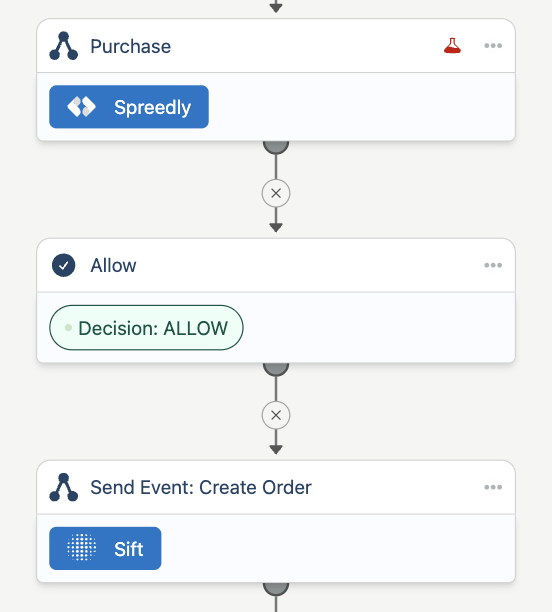
While running in dark mode, review the scores in Sift alongside your transaction outcomes to determine where your thresholds should sit.
Phase 2: Enforce Sift before transaction processing
When you're ready to act on Sift scores, place Sift ahead of your transaction step and add a decision step that routes based on the score.
Step 1: Add the Create Order step
- Open your transaction processing checkpoint.
- Drag Send Event: Create Order into the flow before your transaction step.
- Click the step to open the configuration panel and map the inputs.
Step 2: Add a decision step
- Drag a Decision step directly below the Send Event: Create Order step.
- Click the decision step to open the Paths panel.

Step 3: Configure paths based on the Sift score
For each path, add a condition using the Sift score output:
siftSendEventCreateOrder.outputs.paymentAbuse.score
Then set the operator (for example, ≥) and the threshold value. Configure the following paths as needed for your business:
| Path | Example condition | Example action |
|---|---|---|
| Deny |
≥ your deny threshold | Add a DENY step to block the transaction. |
| Review |
≥ 0.2 | Notify your internal team to review the results, for example by sending an alert. |
| Allow (Default) | All other scores | Proceed to your transaction step, for example Purchase. |
Choosing thresholds
Sift scores in Composer range from 0 to 1. The higher the score, the higher the risk of fraud. Set your thresholds on this 0 to 1 scale.
We recommend starting with a threshold of 0.2 and monitoring from there. A threshold of 0.2 is relatively low, which lets you observe how Sift scores your traffic without unnecessarily blocking good customers. Adjust your thresholds over time based on your results and the data you gathered in dark mode.
Improving scoring over time
Use the Send Training Decision step to send decisions back to Sift so it can train scoring for your business.
Testing Sift
Sift does not have a test mode and treats every event it receives as real. Test your checkpoint in Composer sandbox before sending traffic to production. Sandbox testing confirms your checkpoint and integration work as expected; dark mode in production then gives you real score data for your thresholds.
- Build and test in sandbox. Build your checkpoint in Composer sandbox, where Sift runs against sandbox credentials, so test orders are not scored by your production Sift account.
- Point your backend at sandbox. While testing, use your sandbox Composer API keys with the Server SDK.
- Use a test-case branch for repeatable scenarios. Add a decision step right after the trigger that checks a metadata value such as
transaction.metadata.testCase(the name is your choice; metadata keys are case sensitive). Route each value to a fixed outcome, for exampleallowto Allow anddenyto Deny. Requests without atestCasevalue follow the normal Sift path. This isolates each scenario so you can rerun it with the same result every time. - Also test the real Sift path. Test-case branches check how your application handles each outcome, not how Sift scores orders. Send some orders without a
testCasevalue to confirm the score field and your thresholds behave as expected. - Check your results. Review each test run in the Composer sandbox logs.
- Move the checkpoint to production. Use Composer's export and import to copy the tested checkpoint from sandbox to production, then publish it.
Remove any test-case branch before you export the checkpoint to production. Otherwise, a production request that includes the test value could skip Sift screening.
Once live, send only real orders to the production checkpoint, since Sift treats every event as real.
Optimizing Your Event Data
Sift uses a variety of data points to make decisions. To get the most out of Sift, send as much relevant data as possible. Below are example requests generated with mock data showing different ways of sending data to Sift.
You can view detailed descriptions of input fields in the Checkpoint studio. Send data that meets the specifications for each field.
Send Event: Create Order (Min Data)
This is the minimum data you can send to Sift to create an order. We strongly recommend sending more data than this to get the best results from Sift, but this will not cause an error.
{
  "transaction": {
    "externalId": "5bed8ef2-7ff4-4823-afab-9f4f35c1d9d3"
  }
}
Send Event: Create Order (Critical Data)
This is the most critical data you can send to Sift to create an order. Note that some data may not be relevant to your business, and you may not have it available to send. For example, if a user is not creating an order involving cryptocurrency, you would not send information in the digitalOrders array.
{
  "customer": {
    "externalId": "c073a052-81c8-4409-bae2-16b5b81214bd",
    "primaryEmail": "[email protected]"
  },
  "transaction": {
    "externalId": "5bed8ef2-7ff4-4823-afab-9f4f35c1d9d3",
    "currency": "TRY",
    "amount": 646836,
    "billingAddress": {
      "firstName": "Mervin",
      "lastName": "Durgan",
      "phone": "+44 820-916-4833",
      "line1": "10546 Huels Walks",
      "line2": "Suite 714",
      "city": "North Griffin",
      "state": "Missouri",
      "postalCode": "52692",
      "country": "NE"
    },
    "lineItems": [
      {
        "externalId": "cd632348-d88d-466a-b720-d259427b6d15",
        "unitAmount": 8511
      }
    ]
  },
  "paymentMethod": {
    "externalId": "dfc78bab-dcfe-47c3-8ada-e63028a6b21a",
    "type": "CARD_PREPAID",
    "gateway": "SPREEDLY",
    "cardLastFour": 3333,
    "cardBin": "424242",
    "cardHolderName": "Mervin Durgan"
  },
  "siftSendEventCreateOrder": {
    "inputs": {
      "brandName": "Example Brand",
      "digitalOrders": [
        {
          "externalId": "e6c05dc8-3144-4b2c-932c-1de82e85f401",
          "asset": "BTC",
          "assetPair": "USD_BTC",
          "assetType": "$coin",
          "orderType": "$market",
          "volume": "0.01"
        }
      ]
    }
  }
}
Send Event: Create Order (Max Data)
This example includes complex supported data points for the Create Order event.
{
  "customer": {
    "externalId": "c073a052-81c8-4409-bae2-16b5b81214bd",
    "primaryEmail": "[email protected]",
    "primaryPhone": "+44 820-916-4833"
  },
  "transaction": {
    "externalId": "5bed8ef2-7ff4-4823-afab-9f4f35c1d9d3",
    "currency": "TRY",
    "amount": 646836,
    "paymentMethods": [
      {
        "externalId": "659512fb-96e8-4a8f-8a01-6a145983de10",
        "type": "CARD_CREDIT",
        "gateway": "STRIPE",
        "cardLastFour": 1111,
        "cardBin": "424242",
        "cardHolderName": "Mervin Durgan"
      },
      {
        "externalId": "7415f078-4bf5-46dc-9849-ee47267908fa",
        "type": "CARD_DEBIT",
        "gateway": "STRIPE",
        "cardLastFour": 2222,
        "cardBin": "424242",
        "cardHolderName": "Mervin Durgan"
      }
    ],
    "billingAddress": {
      "firstName": "Mervin",
      "lastName": "Durgan",
      "phone": "+44 820-916-4833",
      "line1": "10546 Huels Walks",
      "line2": "Suite 714",
      "city": "North Griffin",
      "state": "Missouri",
      "postalCode": "52692",
      "country": "NE"
    },
    "shipments": [
      {
        "carrier": "USPS",
        "method": "Ground",
        "trackingNumbers": "1234567890, 0987654321",
        "isExpedited": false,
        "isDigitalDelivery": false,
        "address": {
          "firstName": "Mervin",
          "lastName": "Durgan",
          "phone": "+44 820-916-4833",
          "line1": "10546 Huels Walks",
          "line2": "Suite 714",
          "city": "North Griffin",
          "state": "Missouri",
          "postalCode": "52692",
          "country": "NE"
        }
      }
    ],
    "lineItems": [
      {
        "externalId": "cd632348-d88d-466a-b720-d259427b6d15",
        "unitAmount": 8511,
        "numUnits": 76,
        "product": {
          "externalId": "31b1b812-1651-4a99-bc13-8207dea61214",
          "sku": "Chair",
          "upc": "156627478961",
          "name": "Incredible Cotton Pants",
          "category": "Beauty",
          "brand": "Test Brand",
          "manufacturer": "Test Manufacturer",
          "color": "Test Color",
          "size": "Test Size"
        }
      },
      {
        "externalId": "6a8b47e5-6b1a-41e8-b399-c1c443b961fc",
        "unitAmount": 0,
        "numUnits": 0,
        "product": {
          "externalId": "ce1feabc-1c96-4f1e-95d1-2b04398d99ff",
          "sku": "Mouse",
          "upc": "515084550622",
          "name": "Intelligent Granite Chicken",
          "category": "Automotive",
          "brand": "Test Brand",
          "manufacturer": "Test Manufacturer",
          "color": "Test Color",
          "size": "Test Size"
        }
      }
    ]
  },
  "paymentMethod": {
    "externalId": "dfc78bab-dcfe-47c3-8ada-e63028a6b21a",
    "type": "CARD_PREPAID",
    "gateway": "SPREEDLY",
    "cardLastFour": 3333,
    "cardBin": "424242",
    "cardHolderName": "Mervin Durgan"
  },
  "siftSendEventCreateOrder": {
    "inputs": {
      "brandName": "Example Brand",
      "siteDomain": "https://www.example.com",
      "siteCountry": "US",
      "sellerExternalId": "fake-seller-id",
      "digitalOrders": [
        {
          "externalId": "e6c05dc8-3144-4b2c-932c-1de82e85f401",
          "asset": "BTC",
          "assetPair": "USD_BTC",
          "assetType": "$coin",
          "orderType": "$market",
          "volume": "0.01"
        },
        {
          "externalId": "24aae8f9-363c-4773-90cf-ecfd377cc26d",
          "asset": "ETH",
          "assetPair": "USD_ETH",
          "assetType": "$coin",
          "orderType": "$market",
          "volume": "0.02"
        }
      ]
    }
  }
}
Updated 10 days ago